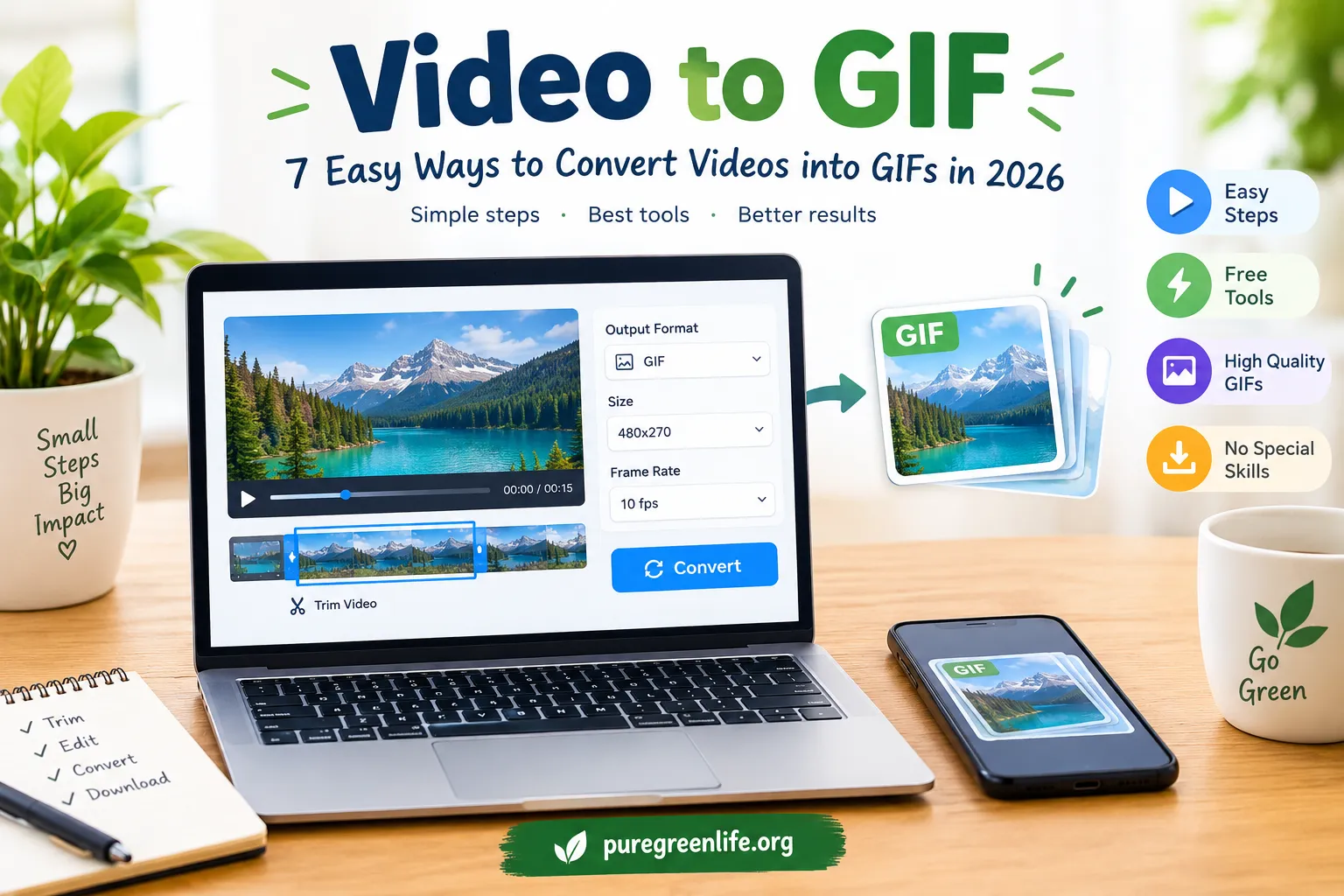
A short animated GIF can make a message more fun and easier to understand. You can create one from a video clip in just a few steps. GIFs are useful for social media, tutorials, reactions, and website content. You do not always need advanced editing skills to make them.
In this guide, you will learn how to convert video to GIF online. You will also discover how to adjust quality, reduce file size, and avoid common problems.
What Is a Video to GIF Converter?
A video to GIF converter changes a video clip into an animated image. The result plays repeatedly without needing a video player. Many converters let you choose the clip’s length, dimensions, and playback speed.
These tools often support common video formats, including MP4 and MOV. Some work directly in your browser, while others require an application. The best option depends on your device, file size, and editing needs.
GIF files are useful when you want to share a short moving image. They work well for reactions, simple demonstrations, and looping animations. However, GIFs usually have larger file sizes than modern video formats at similar visual quality.
How to Convert Video to GIF Online
Online converters offer a simple way to create GIFs without installing editing software. Most follow a similar process. The exact buttons and options depend on the tool you choose.
Step 1: Choose a Video to GIF Converter
Start by selecting a converter that supports your video format. Check its file-size limits and available editing features. If your video contains private information, review the site’s privacy policy before uploading it.
A browser-based tool may be convenient for quick conversions. Desktop software can be better for large files or detailed editing. Choose a tool that fits your needs instead of installing unnecessary applications.
Step 2: Upload Your Video
Open the converter and select its upload option. Choose the video file from your computer or phone. Wait for the upload to finish before editing the clip.
Some tools also support drag-and-drop uploads. Others may accept video links, although this feature is not available everywhere. Avoid entering private links into unfamiliar websites.
Step 3: Select the Part You Want
Most GIFs work best when they focus on one clear moment. Use the trimming controls to choose the start and end points. Remove long pauses and unnecessary scenes.
A shorter clip is often easier to share. It can also reduce the final file size. Before converting, preview the selected section to make sure the action is clear.
Step 4: Adjust the Size and Speed
Choose dimensions that suit the place where you will share the GIF. Smaller dimensions often create smaller files. Keep enough detail for viewers to understand the action.
You can also adjust playback speed when the converter supports it. Faster playback may work for demonstrations, while slower playback can highlight a particular movement. Preview the result before saving it.
Step 5: Convert and Download
Select the convert or create button. The tool will process your clip and generate an animated GIF. Once it finishes, preview the animation and check that it loops correctly.
If the result looks good, download the file. Open it on your device to confirm that it works as expected. If the file is too large, return to the settings and try smaller dimensions or a shorter clip.
Best Video to GIF Converter Options
Different tools suit different users. Consider these common options before choosing a converter.
| Converter type | Best for | Possible limitation |
|---|---|---|
| Online converter | Quick conversions without installation | Upload limits or privacy concerns |
| Desktop video editor | More control over trimming and export | May require installation |
| Mobile editing app | Creating GIFs on a phone | Features can vary by app |
| Image editor with animation support | Detailed frame editing | May take longer to learn |
Before choosing a tool, check its supported formats, export settings, and current pricing. Some services offer free conversions but limit file size or add watermarks. Features can change, so review the current details on the provider’s website.
How to Convert MP4 to GIF
MP4 is a common video format, and many converters support it. The basic process is similar to converting other supported video files.
First, open a converter that accepts MP4 files. Upload your video and select the section you want to animate. Next, adjust the dimensions and speed if needed.
Then start the conversion and wait for processing to finish. Download the GIF and test it in an image viewer or browser. If the animation looks blurry, try a larger output size or a clearer source clip.
Remember that increasing the dimensions may also increase the file size. Choose settings based on how you plan to use the GIF.
How to Make a GIF from a YouTube Video
You may want to turn a short moment from an online video into a GIF. Before doing so, check the platform’s terms and the creator’s rights. Do not assume that every online video is free to download or reuse.
If you own the video or have permission to use it, start with a lawful copy of the clip. Open it in a suitable converter, trim the desired moment, and adjust the output settings.
For public content, permission may still be needed for some uses. Copyright rules can depend on the material and your location. When in doubt, use your own footage or content with a suitable reuse license.
How to Create High-Quality GIFs with Smaller File Sizes
A good GIF should look clear without becoming unnecessarily large. A few simple adjustments can help.
Keep the clip short. Remove scenes that do not add meaning. Short animations usually take less space than longer ones.
Choose suitable dimensions. Use the size required for your website or social platform. Avoid exporting a tiny animation at unnecessarily large dimensions.
Reduce the frame rate when appropriate. Fewer frames can reduce file size, but movement may look less smooth. Preview the animation to find a reasonable balance.
Use a clear source video. Blurry or heavily compressed footage may produce poor results. Start with the best source file available.
Check the color settings. GIF uses a limited color palette compared with many video formats. Gradients and detailed scenes may show visible color changes after conversion.
For website use, test the finished file on a real page. A GIF that looks fine on your computer may still slow down a page if it is very large.
Common Video to GIF Conversion Problems
Why Is My GIF Blurry?
Blurry results can come from a low-quality source video or small output dimensions. Try using a clearer source file and selecting suitable dimensions. Keep in mind that GIF’s color limitations can also affect the final appearance.
Why Is My GIF File Too Large?
Long clips, large dimensions, and high frame rates can increase file size. Trim the clip and reduce the dimensions if possible. You can also compare different frame-rate settings.
Why Does My GIF Not Animate?
Some image viewers display only the first frame. Open the file in a browser or another viewer that supports animated GIFs. If it still does not move, convert the clip again and check the exported file.
Can I Convert a Video to GIF for Free?
Yes, some online converters and editing applications offer free conversion features. Still, free plans may have limits on file size, quality, or daily use. Check the current terms before uploading large videos.
Frequently Asked Questions
Is a GIF the Same as a Video?
No. A GIF is an animated image format, while video formats use different methods to store moving pictures and sound. GIFs generally do not include audio.
Can I Convert a Video to GIF on My Phone?
Yes. You can use a compatible mobile app or browser-based converter. Make sure the tool supports your video format and your phone’s available storage.
How Long Should a GIF Be?
There is no single required length. Short clips often work best for reactions and quick demonstrations. Choose a duration that communicates the moment without unnecessary movement.
Does Converting a Video to GIF Reduce Quality?
It can. GIF supports a limited color palette, and resizing or reducing frames can affect the result. The amount of quality loss depends on the source video and export settings.
Final Thoughts
Converting video to GIF is a simple way to turn a useful moment into a looping animation. Choose a suitable converter, trim the clip, and adjust the size before exporting. Then preview the file to check its appearance and playback.
For better results, keep animations focused and avoid unnecessarily large files. Always check privacy and usage rights before uploading or sharing video content. With the right settings, you can create GIFs for messages, tutorials, and other digital projects.