
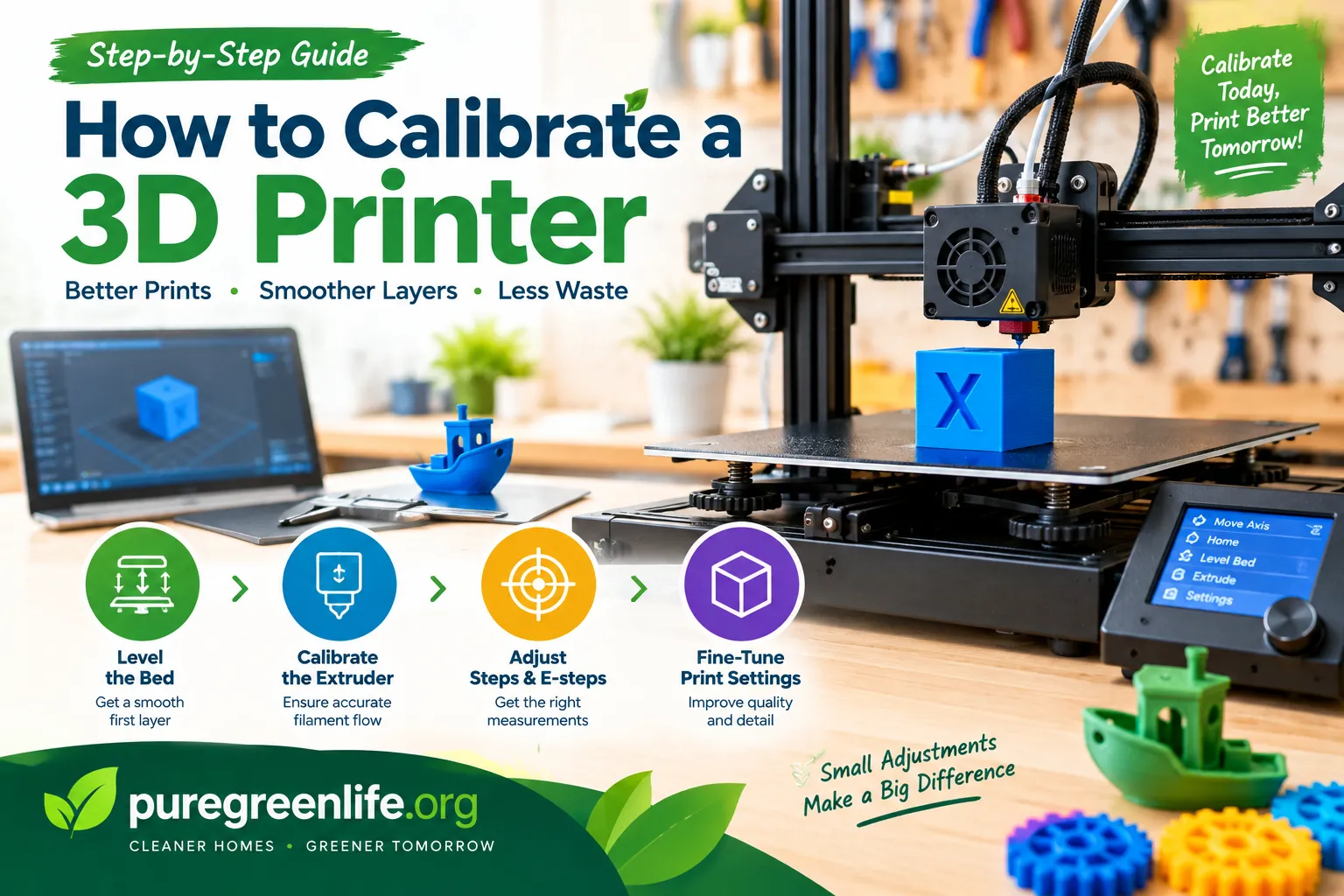
3D printer calibration means adjusting printer settings for accurate and consistent results. These settings control movement, filament flow, nozzle height, and temperature. Correct calibration helps each layer stick properly to the previous layer.
Modern printers often include automatic calibration features. These features save time and reduce manual adjustments. Still, users should inspect the first layer and check print quality regularly.
Prepare Your 3D Printer Before Calibration
Before changing settings, inspect your printer and prepare its parts. This helps you avoid calibration errors caused by simple mechanical problems.Remove dust, fingerprints, and leftover filament from the build plate. Use a cleaning method suitable for your plate material. A dirty surface can cause poor adhesion, even with correct calibration.
Check Belts, Screws, and Moving Parts
First, inspect the printer’s belts for too much looseness or tightness. Next, check that the frame screws are still tight. Then, make sure the print head and bed move smoothly.
Also, loose belts can cause ghosting and wrong sizes in your prints. On the other hand, too much belt tension can damage parts or increase friction. For this reason, it is best to fix mechanical problems first. After that, you can adjust the software settings.
How to Calibrate a 3D Printer Step by Step
Follow these steps in order for a reliable calibration process. Your printer’s menus may differ from the instructions below. Always follow the manufacturer’s guidance for model-specific settings.
Level the Print Bed
Bed leveling helps keep the distance between the nozzle and the print surface the same everywhere. First of all, an uneven bed can cause poor adhesion in some areas. As a result, your print may come loose. In addition, an uneven bed may make the nozzle scrape the surface. Because of this, leveling is worth doing carefully.
For manual leveling, first, heat the bed if your manufacturer recommends it. Next, move the nozzle to the specified adjustment points. Then, use the recommended paper test or leveling method. After that, adjust the bed screws until the gap becomes consistent. Once that is done, check the gap at every point. If it is not the same, repeat the process. Most importantly, avoid forcing the nozzle against the build plate. Otherwise, you may damage the nozzle or the plate.
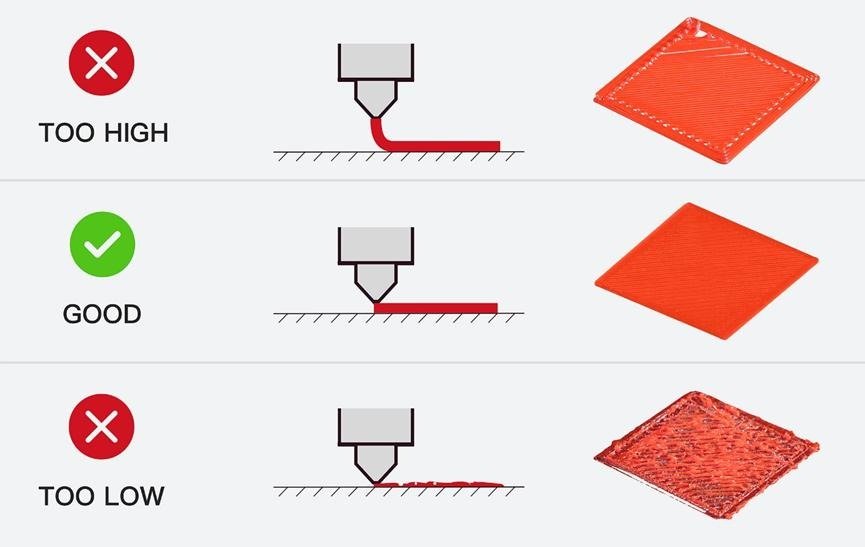
First, if the nozzle sits too high, the filament may not stick properly. As a result, the printed lines may look round and stay separated. On the other hand, if the nozzle sits too low, the filament may look too flat or rough.
A correct first layer looks even and consistent. Also, the lines next to each other should connect without big gaps or raised ridges. However, the right Z-offset number depends on your printer and sensor. For this reason, do not copy another printer’s value. Instead, check the result with your eyes and follow your printer’s calibration instructions..
Calibrate Nozzle Temperature
Different filaments need different printing temperatures. Even two brands of the same material may behave differently. Incorrect temperatures can cause stringing, weak layers, or rough surfaces.

Start with the filament manufacturer’s recommended temperature range. Print a temperature tower using a suitable calibration model. Each section should use a different nozzle temperature.
Check Extrusion and Flow Rate
Flow rate controls how much filament the printer deposits. Incorrect flow can create gaps or excessive material. These problems can affect strength, dimensions, and surface finish.
Begin with the filament profile’s default flow setting. Print a suitable flow calibration model if your slicer supports one. Follow the model’s instructions to compare the results.
If the walls look too thin, the printer may under-extrude. If material builds up excessively, it may over-extrude. Check for clogs, incorrect nozzle size, and filament problems first.
Calibrate Retraction Settings
Retraction pulls filament back during certain travel moves. It helps reduce unwanted strings between printed parts. Incorrect settings can cause stringing or gaps after travel.


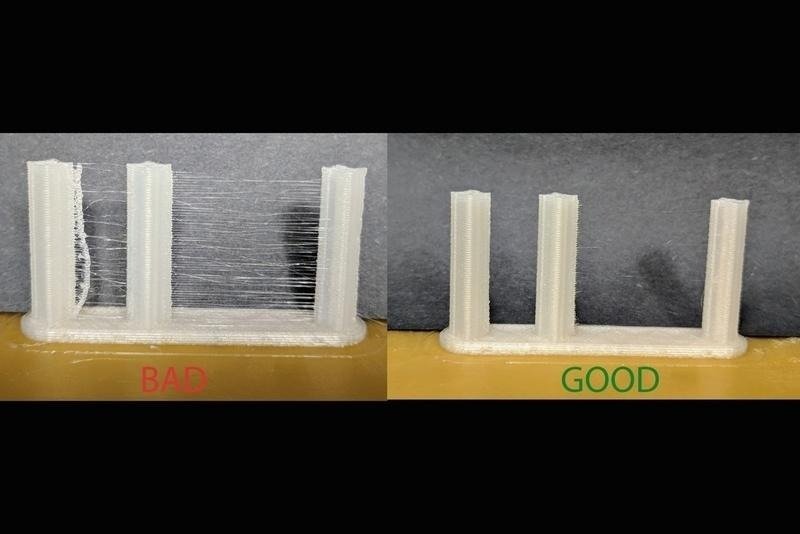
Print a retraction test model using your slicer’s default settings. Inspect the gaps between towers and small printed features. Adjust retraction distance or speed only when the test shows problems.Direct-drive and Bowden printers often need different settings. Filament type and temperature also affect retraction results. Excessive retraction can cause clogs or inconsistent extrusion.
Check Dimensional Accuracy
Dimensional calibration helps you understand whether printed parts match their intended measurements. It matters most for mechanical parts, enclosures, and fitted components.Print a calibration object with known dimensions. Measure it with a reliable digital caliper. Compare the measurements with the model’s intended dimensions.
Advanced 3D Printer Calibration Methods in 2026
Advanced calibration can improve print quality, especially on fast printers. Not every printer supports every method. Use features compatible with your firmware and hardware.
Pressure Advance Calibration
Pressure Advance compensates for changing pressure inside the nozzle. It adjusts extrusion during acceleration and deceleration. This can reduce corner bulges and improve line consistency.

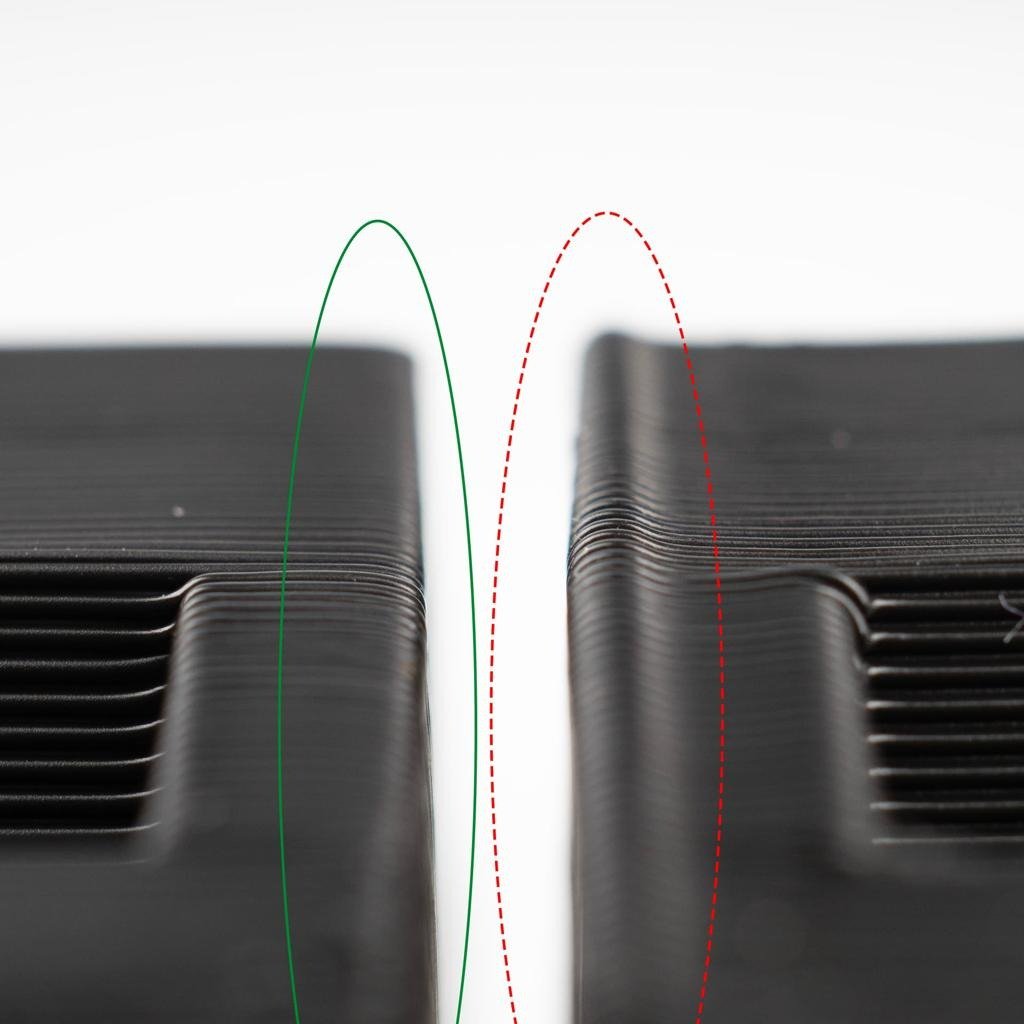
Print a Pressure Advance test using a compatible slicer or firmware tool. Compare corners and straight sections across the test pattern. Choose the value that produces the cleanest, most consistent lines.
The ideal value depends on the extruder, filament, and print settings. Follow the calibration instructions for your printer’s firmware. Some systems use Linear Advance instead of Pressure Advance.
Input Shaping Calibration
Input Shaping helps reduce ghosting and ringing on printed surfaces. These defects appear as repeated ripples near sharp corners. They often become more noticeable at higher speeds.

Common 3D Printer Calibration Problems and Solutions
Even a calibrated printer can develop problems over time. Use the visible symptoms to identify what needs checking.
| Problem | Possible cause | What to check |
| First layer will not stick | Dirty plate or incorrect Z-offset | Clean the plate and inspect nozzle height |
| Rough or uneven layers | Flow, temperature, or mechanical issues | Check extrusion and moving parts |
| Stringing between parts | Temperature or retraction settings | Run a retraction test |
| Bulging corners | Pressure Advance needs tuning | Run a compatible calibration pattern |
| Repeated surface ripples | Vibration or loose belts | Inspect mechanics and Input Shaping |
| Incorrect dimensions | Shrinkage, backlash, or slicer settings | Measure a test print and inspect mechanics |
| Filament stops flowing | Clogged nozzle or feed problems | Check the nozzle and filament path |
Make one change at a time. Then print another test to confirm the result. This approach makes problems easier to diagnose.
How Often Should You Calibrate a 3D Printer?
Calibration frequency depends on your printer and how often you use it. Automatic printers may need fewer manual adjustments. Mechanical changes can require a more complete check.
Inspect the first layer before important prints. Recheck Z-offset after changing the nozzle or relevant hardware. Check flow when switching filament types or brands.
Run advanced calibration after major firmware or hardware changes when recommended. You do not need to repeat every test before every print. If print quality remains consistent, avoid unnecessary adjustments.
H2 #7: Final Checklist for Accurate 3D Prints
Before starting an important print, review these points:
- The build plate is clean.
- The nozzle is clear of unwanted plastic.
- Belts and moving parts are secure.
- Bed leveling and Z-offset are correct.
- Nozzle and bed temperatures match the material.
- Flow and retraction settings suit the filament.
- Advanced features match the printer’s capabilities.
- A small test print confirms the settings.
Following this checklist can reduce common printing errors. It also helps you identify problems before wasting material.
Conclusion
Learning how to calibrate a 3D printer improves reliability and print quality. Start with mechanical checks, bed leveling, and Z-offset. Then tune temperature, flow, and retraction when needed.
Advanced methods add further control over extrusion and vibration. Pressure Advance and Input Shaping are especially useful on compatible fast printers. PID tuning can help when temperature stability needs attention.
The best approach is to calibrate in a sensible order. Change one setting at a time and test the result. With regular checks, your printer can produce more consistent and accurate parts.